Overview of Credentials Provisioning
Implementing Zero Touch Provisioning
PointPerfect Flex and PointPerfect Live ZTP are based on two main elements:
A token used to authenticate the provisioning request. This token is linked to a Service Device Profile that defines the characteristics of the PointPerfect Thing or Things that will be created.
A REST API request in which the host sends an HTTPS POST request to create and provision a new PointPerfect Thing. The response to this request contains the credentials needed to access the PointPerfect service. This process can also be repeated later if the credentials need to be retrieved again.
Creating a Device Profile
Log in to the Thingstream Portal and go to ZTP, then Device Profiles from the Services menu in the sidebar. Click Create Profile in the top right corner of the screen.
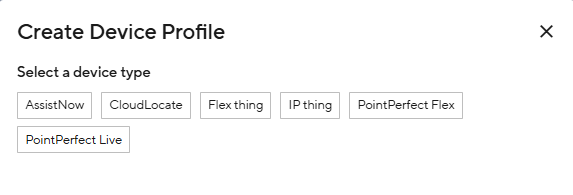
You will then be prompted to select a device type based on the service you want to use. Continue to the section below that matches your selected service.
PointPerfect Flex Device Profile
After you select the PointPerfect Flex device type, the screen will update to include other attributes. See descriptions and screenshots below.
Device Profile Name - This is a label to help you identify the device profile in the portal
Format - Either SPARTN or RTCM. Depending on the Format & Plan chosen, further attributes will be shown.
Auto Activate Devices - After provisioning, the new PointPerfect Flex Thing can be left in an allocated state or automatically activated for immediate use.
Plan - Set the PointPerfect Flex price plan, which will apply to Things created with this profile. See: pricing page
Client Protocol - This is the preferred protocol for your corrections delivery
Device Tags – Apply tags automatically to all devices created with this profile (can also be done individually in the REST API command)
Hardware Code Mandatory - When a device calls the provisioning API on bootstrap there is an option for it to provide an additional unique hardware code e.g. IMEI for improved security. There is also the option to use an allowlist to ensure only devices with a known hardware code can be provisioned.
Action to take if hardware code already exists - what action to take if a device tries to call the provisioning API with an existing hardware code, either return an error, or return the existing device credentials.
PointPerfect Live Device Profile
After you select the PointPerfect Live device type, the screen will update to include other attributes. See descriptions and screenshots below.
Device Profile Name - This is a label to help you identify the device profile in the portal
Region -
Auto Activate Devices - After provisioning, the new PointPerfect Live Thing can be left in an allocated state or automatically activated for immediate use.
Plan - Set the PointPerfect Live price plan, which will apply to Things created with this profile. See: pricing page
Device Tags – Apply tags automatically to all devices created with this profile (can also be done individually in the REST API command)
Hardware Code Mandatory - When a device calls the provisioning API on bootstrap, there is an option for it to provide an additional unique hardware code e.g. IMEI for improved security. There is also the option to use an allowlist to ensure only devices with a known hardware code can be provisioned.
Action to take if hardware code already exists - what action to take if a device tries to call the provisioning API with an existing hardware code, either return an error, or return the existing device credential.
Device Profile Details
Once the Device Profile is created, it is available in your domain.
The Device Profile screen displays the current attributes of the profile you filled out earlier, plus the Endpoint and Token:
Endpoint - The API endpoint for your POST request
Token - The authentication token for your POST request
Status - The status of the profile (Enabled / Disabled)
Many of the profile attributes can be updated later using the Add, Edit, Change, Enable, or Disable options. For example, you can change the assigned plan or disable the profile to prevent new units from being provisioned with it.
Calling the REST API
On the Device Profile page, you will find the ZTP endpoint URL and the provisioning token to be used for creating/provisioning devices using this Device Profile. The swagger docs for the API can be found here.
For PointPerfect Flex: POST /ztp/pointperfect/credentials
For PointPerfect Live: POST /ztp/pointperfect-live/credentials
The body of the request shall be in the following format:
{
     "token": "string",
     "givenName": "string",
     "tags": ["string1", "string2"],
     "hardwareId": "string"
}
where:
tags refer to a list of tags to be applied to the Thing as it is created. This parameter is optional, and can be set either here or within the Device Profile.
token is specific to each Device Profile and mandatory for authentication
givenName, you can choose a friendly name for the device, which is displayed in the portal. The name does not need to be unique.
hardwareId is a unique identifier of the device e.g. IMEI and this parameter is required when your identified Device Profile has included the "Hardware Code Mandatory" check box.
If the request is successful, the response body returns JSON containing the information needed to access the service. This includes authentication parameters and the connection details required for the selected plan and delivery methods defined in the Device Profile. The host can parse this JSON and store the client authentication and connection details needed for future use.
Note: Authentication parameters in the JSON, such as certificates, private keys, usernames, and passwords, are unique to each PointPerfect Thing and should be stored securely by the host.
Note: The JSON for each delivery method can also be downloaded from your domain in the Thingstream Portal.
The PointPerfect Thing created after a successful ZTP request can be found in the Things section of the Thingstream platform. You can search for it using its name, the unique hardwareId used in the provisioning request, or the tags defined in the Device Profile.
Still need help?
If you need more help or have any questions, please send an email to services-support@u-blox.com.